Features
Simple Scoreboard is a progressive web app (PWA) designed for local games, tournaments, and casual pickup play. It runs entirely in your browser and continues to work offline after the first load.
Core Display
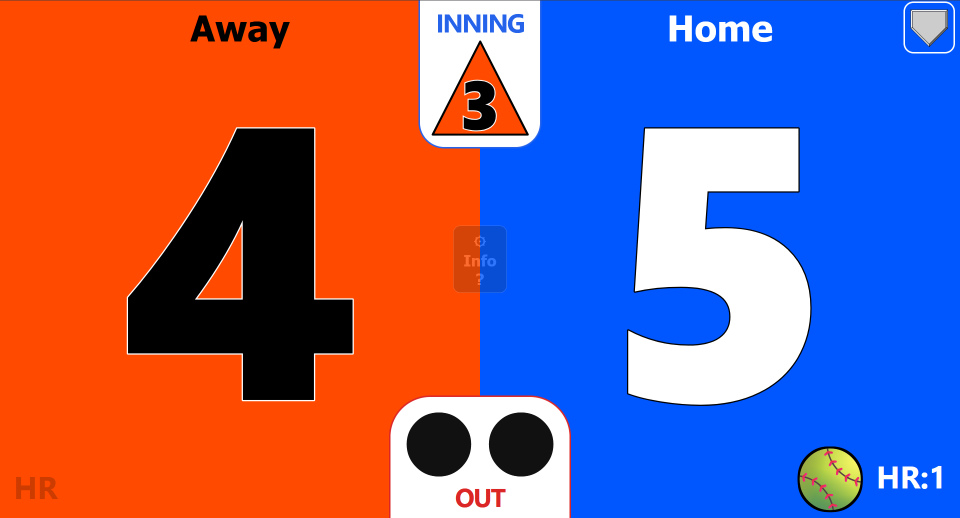
- Large, clear scoreboard layout optimized for tablets and laptops.
- Home and Away score boxes with color-themed backgrounds and readable text.
- Dedicated boxes for INNING, OUT, and HR (Home Run) counters.
- Optional Top/Bottom inning display.
- Optional Home team indicator badge.
- Optional home-run animations and celebratory overlays (configurable from the Animations page).
Controls & Interaction
- Tap (or click) to increase scores and counters.
- Long-press (or right-click) to decrease scores and counters.
- Extra-long-press (2.5 seconds) resets score or counter to zero.
- All counters (Score, INNING, OUT, HR) follow the same tap / long-press / extra-long-press behavior.
- Inactive elements at zero fade to a faint opacity to keep the layout clean, then return to full opacity on interaction or hover.
- Uneeded INNING, OUT or HR counters can be turned off.
- Tap (or click) team name to select from available teams.
- Long-press (or right-click) on team name to display/hide the Home team indicator badge
- Home Run animation is triggered for each HR press. (Can be disabled in Settings).
- Number keys 0-9 and X can trigger animation at anytime on the scoreboard page.
- Default "Home Run" animations are in slots 1 and 2.
- The first two animation slots alternate for each HR.
- Default "OUT" animation is in last slot. X key triggers it.

Storage & Portability
- Uses browser storage (IndexedDB and localStorage) to remember teams, animations, and settings between sessions.
- Export / Import functions let you save a JSON backup of your setup or move it to another device.
- A Service Worker caches files for offline use after the first visit.
How to Use
- Launch the app. Use the “Start the App” button below or open the scoreboard URL directly.
- Use the Info button. Tap (or click) the “Info?” button to see in-app help and access Settings, Teams and Animations. Long-press (or right-click) it to open Settings directly.
- Select or set up teams. From Settings, select the Teams page to configure names, colors, and logos. Then choose your Home and Away teams on the scoreboard.
- Score runs. Tap (or click) the Home or Away score box to add a run. Long-press (or right-click) to subtract if needed.
- Track innings. Use the INNING box to advance the inning. Tap to go forward, long-press to go backward. The box can fade or hide when the inning is 0, depending on your settings.
- Track outs. Use the OUT box to keep track of outs. Tap to increase, long-press to decrease. When it returns to 0 it can fade or hide, depending on your settings. Values are shown using ⬤ symbols (⬤⬤). OUT symbol can be changed in Settings.
- Track home runs. Use the HR counters in the lower corners to count home runs per team. Values are shown using 🥎 symbols and number (HR:2 🥎🥎). HR symbol can be changed in Settings.
- Adjust options. Open Settings to change labels, visibility, opacity, maximum innings, and more.
- Animations. Add your own animations from the Animations page.
- Teams. Add your own team names and logos from the Teams page.
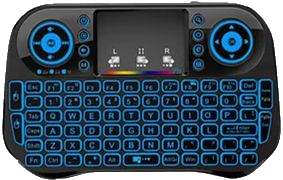
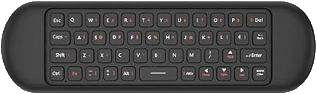
- Use a Bluetooth remote (optional). Pair a Bluetooth keyboard or remote that sends key presses (see the Controls section) to trigger scoring without touching the screen.
- Save or restore your setup. Use the Export / Import buttons (in Settings or on the Teams / Animations pages) to back up your configuration.
- Zero Reset. Extra-long-press on any counter resets it to zero. (Scores, Inning, Out, HR).
- New Game/Reset. Reset all counters for a new game in Settings.
Installation
Simple Scoreboard is a Progressive Web App (PWA). You can install it like an app on your device for a fullscreen experience and offline use.
Android (Chrome)
- Open the scoreboard URL in Chrome.
- Open the browser menu (⋮).
- Select Add to Home screen or Install.
- Launch the app from the new icon.
iOS (Safari)
- Open the scoreboard URL in Safari.
- Tap the Share icon.
- Select Add to Home Screen.
- Launch the app from the new home-screen icon.
Desktop Browsers
- Open the URL in a modern browser (Chrome, Edge, etc.).
- On some browsers you can use Install app from the address bar.
- Use F11 (or fullscreen mode) for a clean scoreboard view.
Offline Use & Updates
- After the first visit, the Service Worker caches the app so it can run offline.
- To get updates, open the app while online; the cache will refresh automatically when a new version is available.
- If things seem stuck or out of date, use a hard refresh (for example Ctrl + F5) or clear site data in your browser settings and reload.
Customization
Simple Scoreboard can be customized through the in-app Settings, Teams page and Animations page.
Scoreboard Behavior
- Set the maximum number of innings (default is 7 for most recreational games).
- Control how the INNING, OUT, and HR boxes appear when their value is 0: fully visible, faint, or hidden.
- Adjust faint opacity to choose how subtle the inactive elements appear.
Labels & Language
- Customize the text of labels such as INNING, OUT, and HR.
- Use this to adapt the scoreboard to other sports or to translate labels into a different language.
Pre-Configured Teams & Animations
- Define preset teams (names, colors, logos) so you can quickly select them on game day.
- Set up a bank of home-run animations that fit your league's style and preferences.
- Search online for Animated GIF/PNG files.
- Use Export / Import to share or reuse configurations across devices.
Teams
The Teams page lets you create and manage a set of reusable teams. You can then pick any of these as Home or Away on the scoreboard.
Team Slots
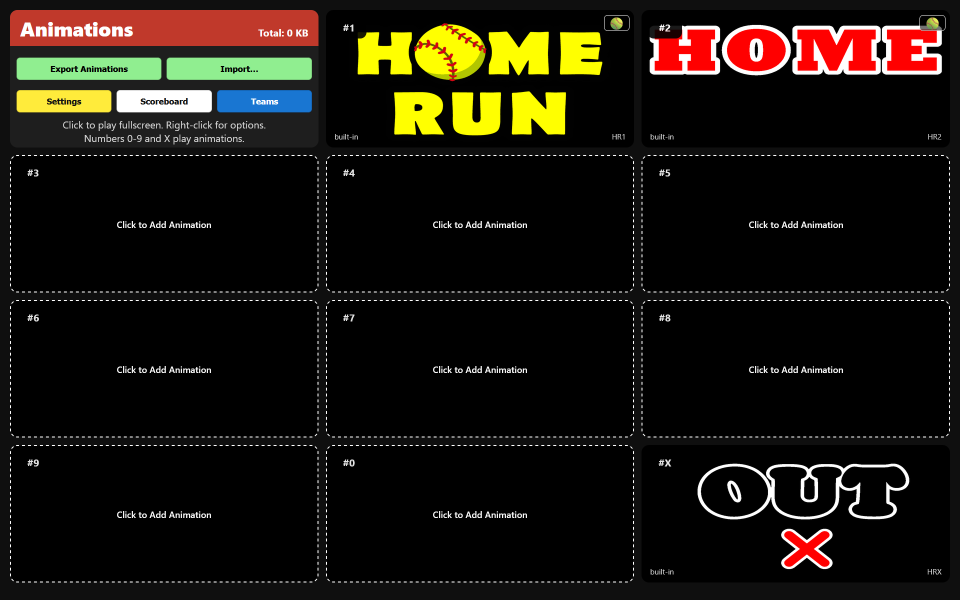
- Fourteen (14) team slots are available.
- Each slot represents one saved team, including name, background color, and logo.
- Empty slots appear as placeholders you can tap to configure.
Editing Teams
- Tap a team card to edit its name and color.
- Choose a logo by using an emoji, a default icon, or by uploading an image. Prefixing team name with an emoji will display that emoji as the team logo if no image logo has been uploaded. Example: "🔥Fire Team", logo = 🔥. In absence of an actual logo, the first letter of the team name is used as an icon logo. Example: "Fire Team", logo = [F].
- Team color automatically feeds into the scoreboard background to keep the look consistent.
Logos & Storage
- Logos are stored as inline data URLs for offline use.
- A byte counter shows approximate logo size so you can keep track of how much storage is being used.
- When no custom teams are defined, default Home / Away placeholders are available on the scoreboard.
Export / Import
- Exporting from the Teams page saves a JSON file containing your configured teams.
- Importing from that JSON restores the same teams, including slot order and logos.
- This is useful for backing up your setup or moving it to another device.
Animations
The Animations page lets you manage short clips that can play when a home run (HR) is scored. These are optional but can add some fun to the game. Animations can also be triggered by keys 0-9 and X at any time.
Animation Slots
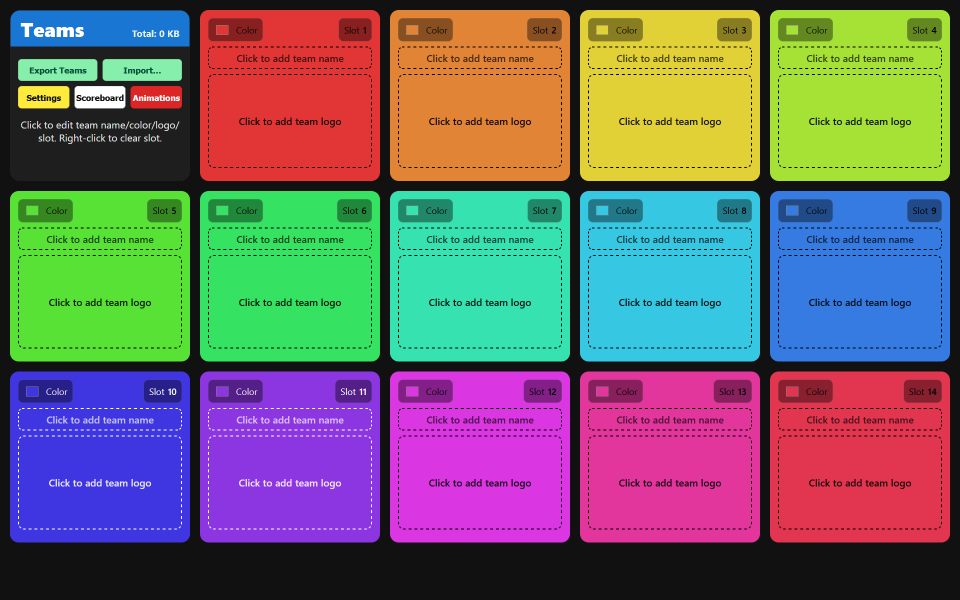
- Eleven (11) animation slots are available.
- The first two slots have built-in default "Home Run" animations that you can keep or replace. Those animations alternate with HR count (if enabled).
- The last slot has a built-in default "Out" animation. It is triggered by pressing X, and not the Out counter. .
- Any of the slots can be filled with your own GIF, PNG (APNG), WEBM, or MP4 files.
Uploading & Managing
- Click (or Tap) on a loaded animation slot card to view it full screen.
- Click (or Tap) an empty slot card to upload a new animation file.
- Right-click (or long-press) a card slot to select "Replace Animation" or "Delete Animation".
- Existing animations can be replaced by uploading a new file into the same slot.
Preview & Playback
- Hover over an animation card to preview the animation in the grid on the Animations page.
- Tap an animation or use keys 0-9 and X display full screen preview of that animation.
- Empty animation slots do nothing when their number is pressed.
- Animations play continuously when previewed from the Animations page. Tap (or click) or [Esc] to stop full screen animation preview.
- When triggered from the scoreboard, the selected animation plays for the HR animation duration (default is 5 seconds). This animation cannot be interrupted.
Export / Import
- Exporting saves your animation configuration (including which slots are empty and which contain data).
- Importing restores animations into the same slots, preserving ordering and empty positions.
- This is useful if you customize a set of animations and want to use them on multiple devices.
Settings
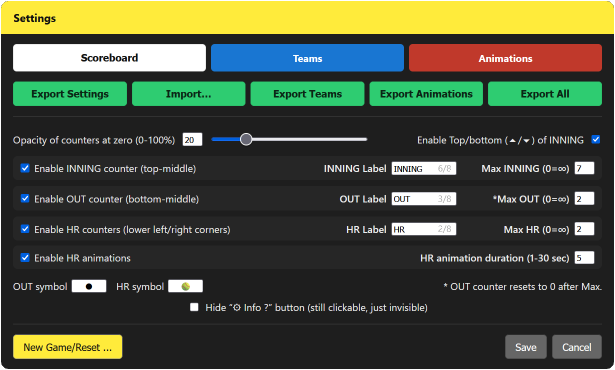
The Settings modal centralizes most of the options that control how the scoreboard looks and behaves. You typically open it from the scoreboard screen (via the Info button).
Display & Behavior
| Category | Option | Description |
|---|---|---|
| Display | Opacity |
Adjusts how transparent inactive or “hidden” elements become
when their value is 0. (Default is 20% visible) |
| Display | Max INNING |
Sets the highest INNING number before the counter stops.
(Default is 7). Set to 0 for unlimited. |
| Display | Max OUT |
Sets the highest OUT number before the counter resets to zero.
(Default is 2). Set to 0 for unlimited. |
| Display | Max HR |
Sets the highest HR number before the counter stops.
(Default is 2). Set to 0 for unlimited. |
| Elements | Show INNING / OUT / HR | Toggles visibility of the INNING, OUT, and HR boxes on the scoreboard. |
| Elements | Show Top/Bottom inning indicator |
Toggles visibility of the inning half indicator arrows (▲/▼). If the Home team badge is active, the arrow color matches the team at bat. |
| Labels | Custom text | Lets you change the lables for INNING, OUT and HR to match your sport or language. |
| Symbols | Custom character |
Lets you change the symbols used for the OUT or HR counters. Select existing symbol and paste new one to change it. Cannot be deleted. |
| Info button | Hidden | Controls whether the Info button is hidden or not. Uses the opacity value when visible. |
| Persistence | Export / Import |
Exports a JSON configuration backup file or imports one you previously
saved. "Export All" saves Settings, Teams and Animations all in one file. "Import" will import everything that is in the backup/exported file that you have selected. Example: Importing a backup of your Teams from the Animations page will only import that data into Teams. Importing is based on the file content, not the page you are on. |
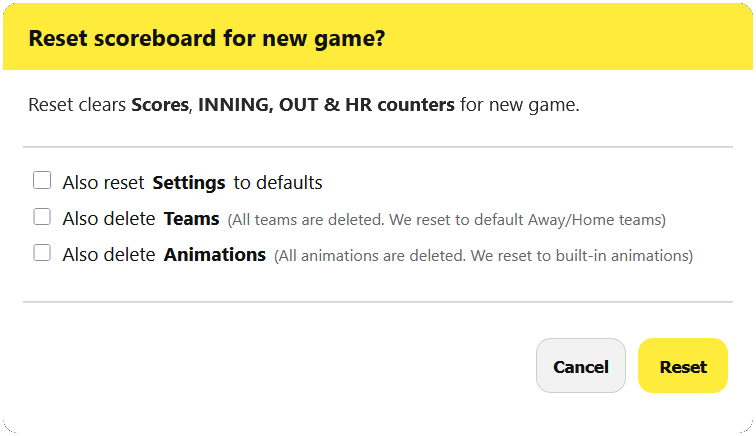
New Game/Reset ...
The "New Game/Reset ..." button allows you to reset the Scoreboard, Settings, Teams and Animations to defaults. Use this to start a new game fresh. Reset has checkboxes for Settings, Teams and Animations. When unchecked only the Scoreboard Score, Inning, Out, HR are reset. To reset the Settings, Teams or Animations you must check their respective checkboxes for the reset to apply. Use Export to save a backup of any Settings, Teams or Animations you want a copy of before performing the reset.
Controls
You can control Simple Scoreboard with touch, mouse, keyboard, or a Bluetooth remote that sends key presses.
Touch & Mouse
- Tap (or click) on counter: Increase value (score, inning, out, HR).
- Long-press (or right-click) on counter: Decrease value (score, inning, out, HR).
- Tap (or click) on team name to select your team.
- Long-press (or right-click) on team name enables/disables Home team badge
- Info button tap (or click): Shows basic instructions and buttons for Settings, Teams and Animation pages.
- Info button long-press (or right-click): Opens Settings directly.
- Extra-long-press (2.5s) on any counter resets it to zero.
Keyboard & Remote
The table below shows keys mapped to the scoreboard functions: Score,
inning, out and HR.
Key press increments value. Shift+Key decrements value.
| Function | Key | Notes |
|---|---|---|
| Home score +/- |
H / Shift+H or ] / } |
Mapped to Home team (right) score up/down |
| Away score +/- |
A / Shift+A or [ / { |
Mapped to Away team (left) score up/down |
| Inning +/- | I / Shift+I | Inning count up/down; stops at max |
| Out +/- | O / Shift+O | Out count up/down; loops after max |
| Left HR +/- | , / < | Left HR counter up/down; stops at max |
| Right HR +/- | . / > | Right HR counter up/down; stops at max |
| Numbers | 0–9, X | Triggers HR animation corresponding to the number |
A Bluetooth keyboard or remote that sends these key codes can control the scoreboard from a distance, which is useful as the scorekeeper does not need to be beside the tablet/laptop.
Troubleshooting & Tips
Common Issues
-
Scores or settings are not saving:
Check your browser's site permissions and make sure local storage and cookies are allowed for this site. -
Scoreboard resets after refresh:
Make sure you are not using private/incognito mode. -
Logos not showing:
Try clearing the browser cache for this site and reloading. If the problem persists, remove and re-upload the logo, ideally using a smaller file. -
Animations not playing:
Confirm the file type is supported (for example GIF, APNG, MP4, or WEBM) and that the file is not corrupt or zero-bytes. -
Layout looks strange after an update:
Use a hard refresh (Ctrl + F5) or clear site data and reload.
General Tips
- Test your setup at home, with and without Wi-Fi, before using it at a game.
- Keep a recent Export of your teams and animations as a backup.
- If you rely on a Bluetooth remote, confirm the battery and connection before the game starts.
If something breaks badly, you can always clear the browser's storage for this site and start fresh, then re-import any saved exports.
TV Display
This is a way to extend the visibility of the scoreboard.
Remote TV Display
- A TV or monitor can be used as a larger display for the scoreboard.
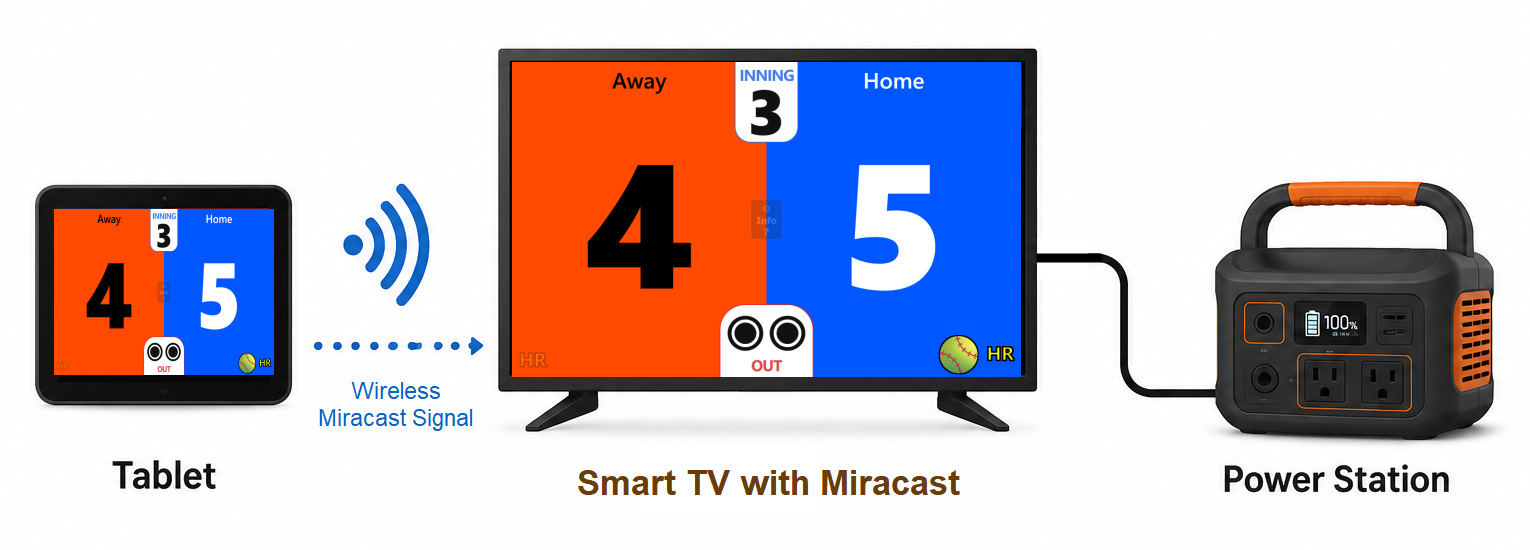
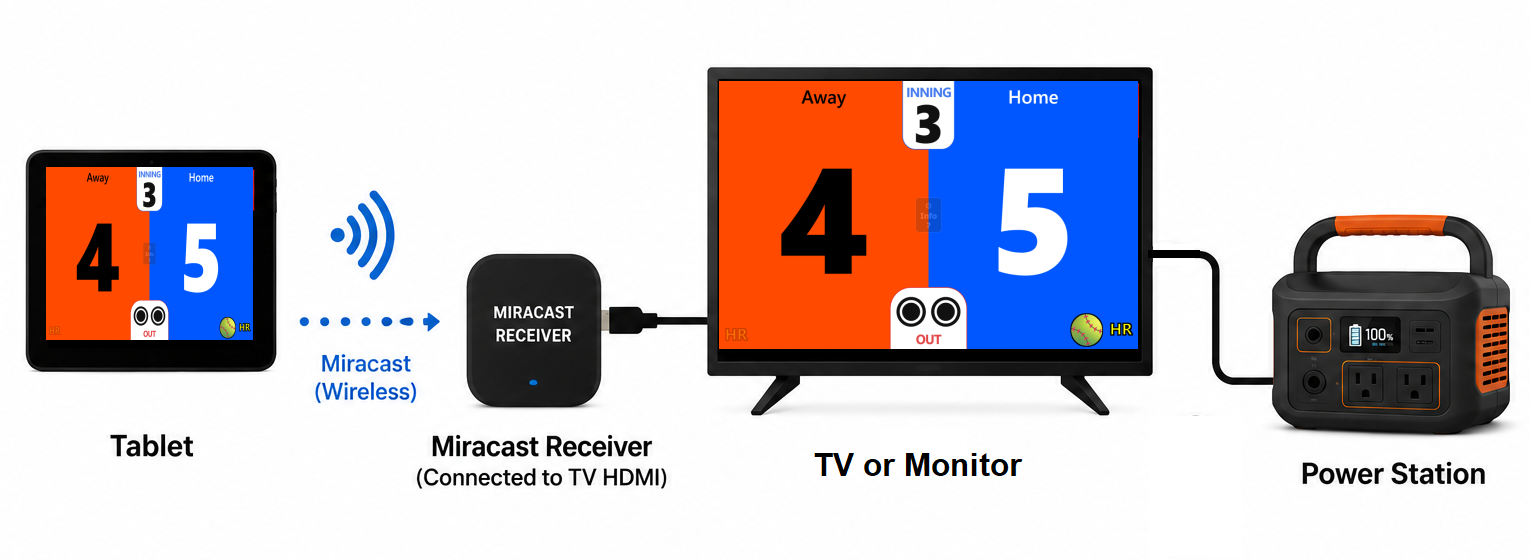
- Connect TV with a long HDMI cable or use Miracast/Wifi-Direct for a wireless connection.
- Many smart TVs support Miracast/Wifi-Direct. So you can cast your tablet or laptop screen to your TV.
- TVs refer to Miracast by various names. Refer to the Wikipedia Miracast article for more information.
- Miracast uses its own local wifi-connection so it can work offline without Internet access.
- Note that Google devices do not support Miracast, and Chromecast does not work without Internet access.
- A Miracast receiver can also be used to connect to your TV. Stay within 6-9m (20-30 ft) to avoid signal drop outs.
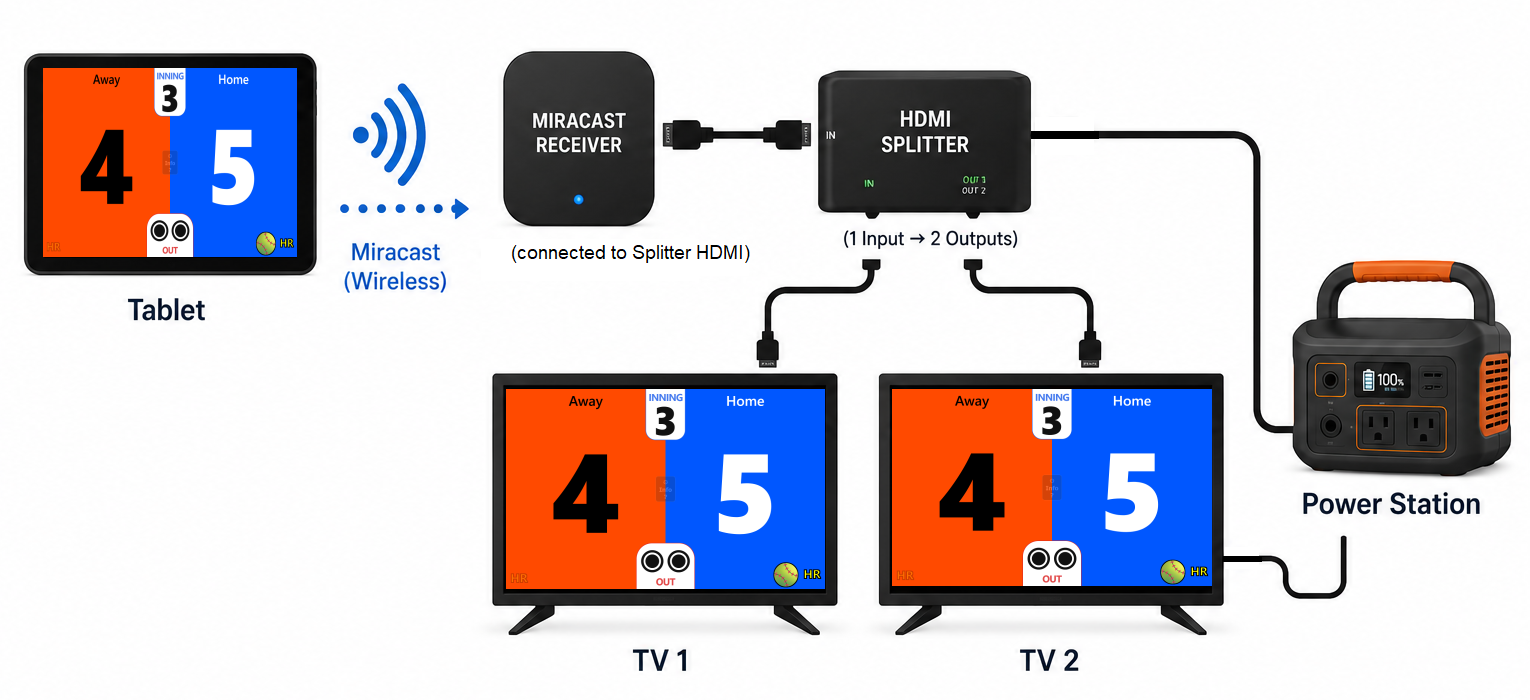
- An HDMI splitter can be used with a Miracast receiver to show the scoreboard on more than one display, one facing players and another for spectators.
- Power the TV with a portable power station battery. A typical 32" LED TV can be powered for about 4 hours from a 300Wh portable power station.
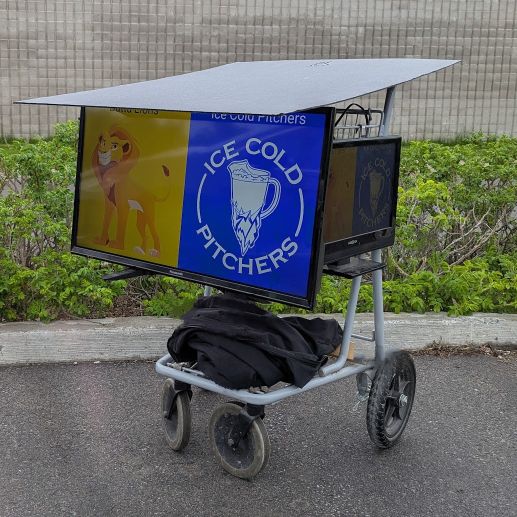
- Get yourself a little cart to mount your TV on and to carry the portable power station. Keep a plastic cover available in case of rain. I used a coroplast sheet velcro'd to the cart and TV.
- My cart was purchased from a store going that was going out of business.
- Miracast with Smart TV diagram
- Miracast with TV or monitor diagram
- Miracast with two TVs or monitors diagram
Launch Simple Scoreboard
Version: v1.1 2026-05-31
© 2026 SimpleScoreboard.ca
▶ Start the App